

PC monitor shopping in 2024 is nothing like it was a few years ago—market growth, new tech, and real-world user complaints have shifted what matters most. Whether you’re a pro, a gamer, or just need an eye-friendly workstation, here’s what you need to know before spending a dollar.
Key Takeaways
- The global PC monitor market is surging with new technologies, but not every upgrade is worth your money.
- Choosing the right screen size, panel type, and feature set depends on how you use your monitor—one size does not fit all.
- Common pain points like eye strain and bad connectivity are still unsolved—but there are practical ways to avoid them.
- 2024-2026 PC Monitor Market Trends You Should Know
- What Size, Resolution, and Panel Type Actually Matter in 2024
- Top Pain Points Real Users Experience with Desktop Monitors
- What Makes the Best LED and Flat Screen Monitors Stand Out This Year
- How Much Should You Really Spend? Price Tiers Explained
- What Your Monitor’s Certifications Really Tell You
- IPS vs. OLED vs. Mini-LED: Which Panel Tech Performs Best for You?
- 3 Things Nobody Tells You About Buying a Monitor
- Conclusion
- FAQ
2024-2026 PC Monitor Market Trends You Should Know
The PC monitor market is on the up, but the real story is in the details. In 2024, the global PC monitor market was valued between USD 38.63-49.62 billion, with IDC forecasting 4 percent growth in 2024 and a continued 2.3 percent in 2025 (source).
Asia Pacific is outpacing other regions with a projected CAGR of 9 percent, while North America and Europe still represent the largest market values. Consumer preferences are moving toward larger screens, higher refresh rates, and LED monitor technologies, with LED and flat screen monitors dominating shipments.
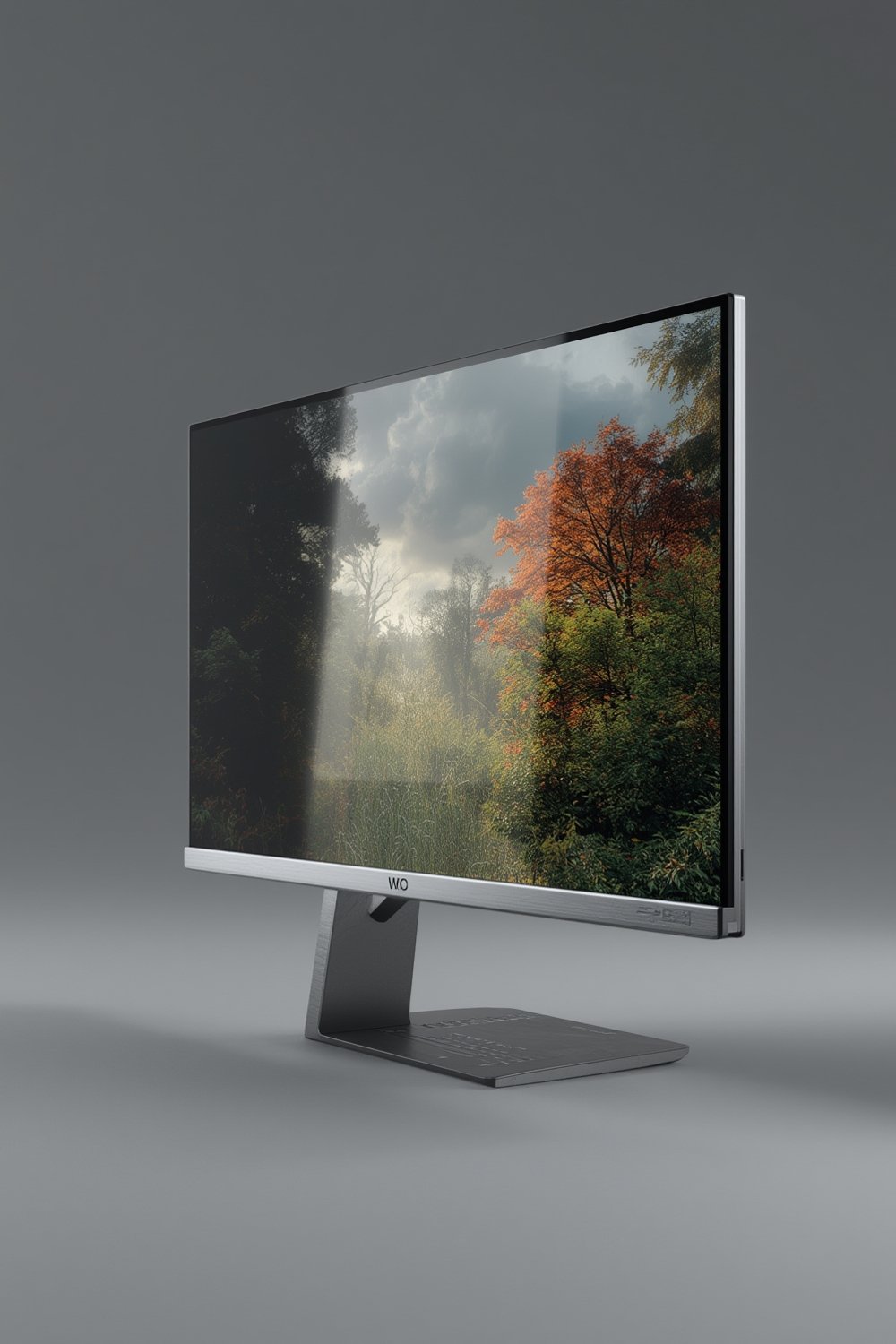
Notably, gaming monitors accounted for 20 percent of all shipments in Q2 2024—the highest ever recorded (source). Meanwhile, trends like hot-desking and smaller office spaces are reshaping commercial demand, and the migration to Windows 11 is nudging both home and business users to upgrade their desktop monitors.
For more context on how panels and resolutions affect sharpness for work and play, see our deep dive into 4k monitors.
What Size, Resolution, and Panel Type Actually Matter in 2026
Monitor size isn’t just personal preference—what’s “ideal” depends on your space, main activities, and eye comfort. For home offices, 24 to 27 inches and resolutions of 1080p or 1440p hit the value-sweet spot. Larger displays (32 inches and up) in QHD or 4K are now mainstream for creative pros, multitaskers, and entertainment fans.
Panel type is a dealbreaker. IPS panels deliver great colors and wide angles, but VA panels have the edge on contrast for drama—handy if you edit photos or watch a lot of videos. For gamers, fast refresh rates (100 Hz is now baseline thanks to price drops) and low response times matter more than ever.
The rise of LED monitor and flat screen monitor options means thin profiles and improved efficiency, but some budget models cut corners on uniformity—read reviews closely before buying.
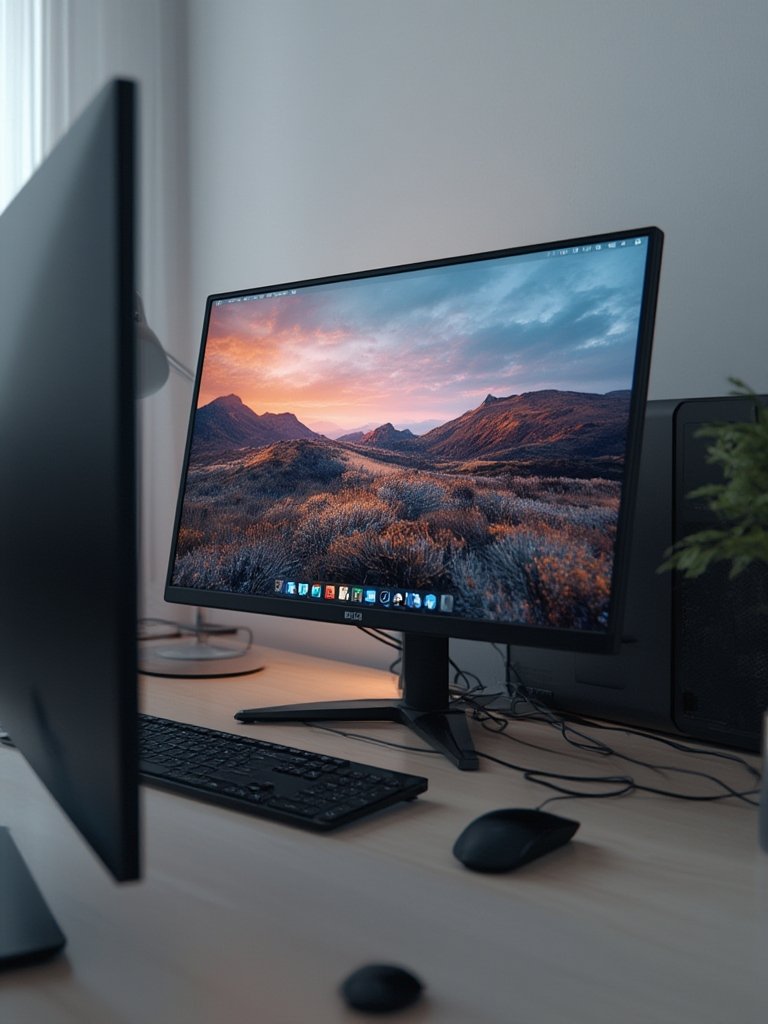
Gaming models, now 20 percent of the market, pack adaptive sync, high refresh rates, and vibrant panels—even for casual players. But if you’re after productivity, ultrawide monitors let you replace multiple screens with one.
Want plug-and-play compatibility for work and entertainment apps? Check out our desktop monitor guide for an overview of no-fuss options.
Top Pain Points Real Users Experience with Desktop Monitors
Despite flashy marketing, user reviews on Amazon and forums like r/monitors point out stubborn problems:
- Eye Strain: Glare, bad flicker management, and over-bright displays still frustrate professionals after long hours. Budget models often lack low blue light filtering or consistent brightness controls.
- Connectivity Woes: Users complain of missing or unreliable ports—especially HDMI, USB-C, or DisplayPort. Inexpensive monitors sometimes ship with only VGA or low-quality cables.
- Build Quality and Reliability: Reports of dead pixels, wobbly stands, or plastic that creaks—especially in entry-level desktop monitor models—remain common.
- Firmware and Driver Updates: Poor update support on value PC monitor lines creates compatibility issues after OS upgrades.
What can you do? Always check real user feedback and don’t rely solely on brand name. If you need stable mounting or specific ports for your setup, consider a adjustable arm with a metal stand or adjustable arm.
What Makes the Best LED and Flat Screen Monitors Stand Out This Year
The technical arms race is real. Premium LED monitor and flat screen monitor models in 2024 stand out for four reasons:
- Color accuracy: Crucial for creativity, top models offer factory calibration or wide color gamuts (over 95 percent DCI-P3 or Adobe RGB on premium variants).
- Refresh Rates: 100 Hz is now standard even on affordable lines, matching the cost of old-school 60 Hz units (source). This benefits gamers and scrolling-heavy workflows.
- Energy Efficiency: Modern LEDs sip energy—a plus for heat and power costs, especially for multi-monitor setups.
- Adaptive Sync & Features: Variable refresh rates (like FreeSync or G-Sync) and USB-C hubs make certain flat screen monitor models stand apart in real-world use.
For a pure gaming edge, compare features on top 165Hz esports monitors; for everyday clarity, see our best picks for high-refresh monitors at regular prices.
How Much Should You Really Spend? Price Tiers Explained
Sticker shock is real, but you don’t have to overspend for a quality pc monitor upgrade. The U.S. PC monitor market alone is on pace for USD 13.4 billion in 2024.
| Tier | Typical Specs | Average Price (USD) | Best For | Example Brands |
|---|---|---|---|---|
| Entry-Level | 24”–27”, 1080p, 60-75Hz, basic stand | 100–180 | Basic office, students | Acer, HP, Sceptre |
| Mid-Range | 27”–32”, 1440p, 100Hz+, USB-C or HDMI 2.0 | 200–370 | Professionals, home offices, light gaming | Dell, ASUS, LG |
| Premium | 27”+, 4K/UWQHD, 120–165Hz+, advanced color, adjustable stand | 380–900 | Gaming, creative work, future-proofing | Samsung, BenQ, Alienware |
Don’t forget open-box deals, last-gen models, and bundle savings—especially at major retailers like Amazon or Best Buy. For travel and hot-desking, pair your desktop upgrade with a portable power bank for all-day charging.
What Your Monitor’s Certifications Really Tell You
Certifications aren’t just marketing—some really matter, others less so. Here’s what to look for on any flat screen monitor:
- TÜV Rheinland: Signals low blue light, flicker-free tech, and friendlier eye comfort. Great for long sessions.
- Energy Star: Meets strict energy efficiency standards—good for your bills in multi-monitor setups.
- HDR (High Dynamic Range): Indicates expanded contrast and color range—but note, “HDR10” on an entry-level LED monitor can be mostly for show if the panel isn’t bright enough (real benefit shows up on higher spec models).
Manufacturers like LG, Dell, and ASUS give certification details on their spec pages. If you want health-impacting sleep or minimal headaches after coding marathons, go for a model with true low blue light and flicker control. For everyday office upgrades, see our practical computer monitor guide.
IPS vs. OLED vs. Mini-LED: Which Panel Tech Performs Best for You?
Choosing between IPS, OLED, and Mini-LED panel technologies for your desktop monitor shouldn’t be guesswork. Here’s a practical, side-by-side breakdown:
| Panel Type | Strengths | Drawbacks | Who It’s Best For |
|---|---|---|---|
| IPS (In-Plane Switching) | Wide viewing angles, good color accuracy, balanced price | Decent but not deepest blacks, can have light bleed, moderate refresh rates | Offices, creative pros, general users |
| OLED | Perfect blacks, infinite contrast, ultra-fast response | Risk of burn-in, higher cost, limited entry-level models | High-end gaming, design, movie buffs |
| Mini-LED | Very bright, deep contrast, less risk of burn-in, increasingly affordable | Pricier than IPS, sometimes “halo” effect on bright/dark transitions | Bright rooms, productivity, creators, gamers with big budgets |
As OLED and Mini-LED trickle down in pricing, even casual users benefit from the improved contrast and color accuracy once reserved for high-end setups.
Explore productivity-focused panel choices in our straightforward high refresh LED monitor guide.
3 Things Nobody Tells You About Buying a Monitor
Monitor buying advice online is full of “top 10” lists—but here’s what you won’t hear from most guides:
- Fit and Ergonomics Matter More Than Specs: A large display on a cluttered desk leads to neck pain and wasted money. Measure—not guess—your available space and check the mount options. Wall-mounting or using an arm can save massive real estate. For a productivity boost, look into a magnetic phone mount to keep devices within reach.
- Firmware and Updates Are an Afterthought—Until Problems Hit: Cheaper models often never get firmware fixes, which can lead to flicker, compatibility issues, or missing out on new adaptive sync standards. Favor brands with explicit support and updates.
- Ports Are Your Future-Proofing Lifeline: Some new monitors drop HDMI or DisplayPort in favor of USB-C only. This is great if you have a modern laptop, but bad if you occasionally plug in an older game console or work device. Always double-check not just what’s included, but which cables actually come in the box.
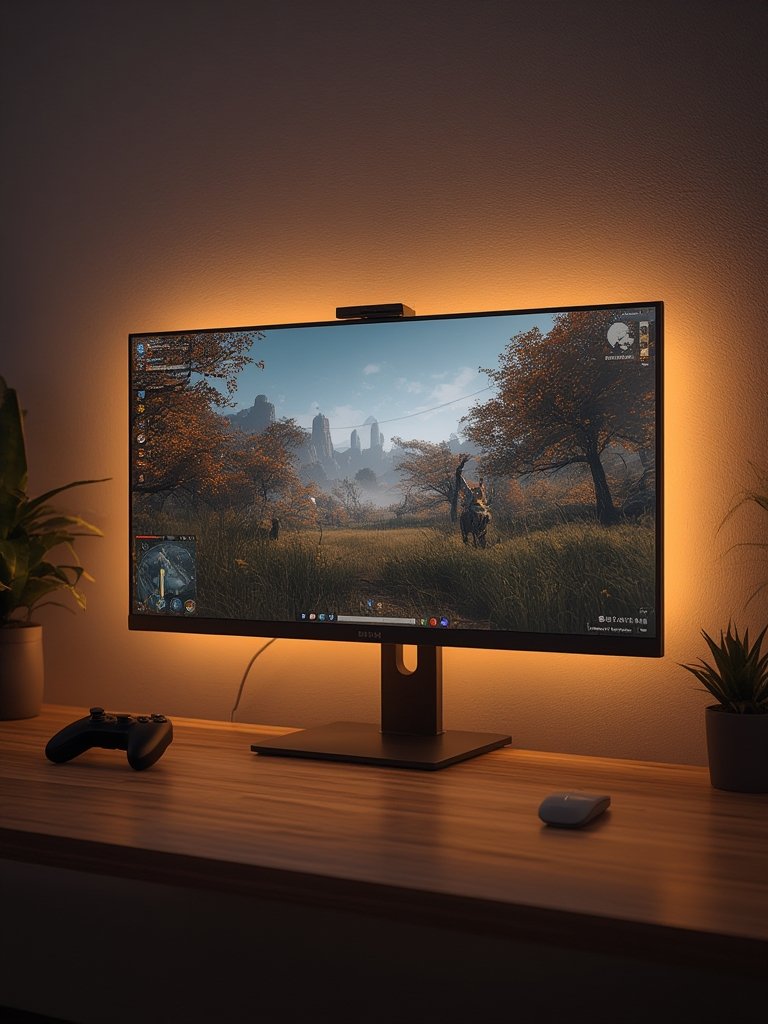
If you want a truly seamless work/gaming setup, consider external solutions like a GaN fast charger to power everything from your desktop to your phone in one outlet.
Conclusion
Choosing the right pc monitor today means more than chasing buzzwords or maxing out your budget. Know your space, real usage, must-have features, and what actually affects comfort and performance long-term. Let user reviews, not just spec sheets, guide your choice.
Ready to future-proof your desktop setup? Use these tips to find a pc monitor that’s comfortable, reliable, and a true upgrade—whatever your work or play demands. Explore in-depth guides next, or compare more flat monitor options.
FAQ
What’s the best size and resolution for a home office pc monitor?
Most people are happiest with a 27-inch, 1440p (QHD) monitor—it offers a balance of screen real estate, sharpness, and space efficiency. If your desk is small or your budget is tight, 24-inch 1080p models are still solid for everyday tasks.
Is it worth paying extra for a 100 Hz or faster refresh rate?
Absolutely—100 Hz (now as affordable as old 60 Hz models) helps reduce eye strain and makes scrolling and cursor movement smoother for everyone, not just gamers.
How do I reduce eye strain on my monitor?
Look for models certified for low blue light and flicker-free operation (like TÜV Rheinland), adjust brightness to match your room, and consider using built-in “Night Mode” or third-party screen filters.
What’s the real difference between IPS, OLED, and Mini-LED for regular users?
IPS is best for most users: affordable, good color, wide viewing. OLED offers the best contrast and color for premium budgets but may suffer burn-in after long-term static use. Mini-LED is ultra-bright and close to OLED quality but usually costs more. For most, a quality IPS or entry Mini-LED makes sense.
Can I use a pc monitor as a TV or for console gaming?
Yes—many modern monitors double as TVs if they have the right HDMI input and speakers. For gaming consoles, check for low input lag, adaptive sync, and support for your console’s preferred resolution/refresh rate.